1. Getting started
Creating a project
Once the app is installed, open it, and you’ll be greeted by a welcome screen with two buttons - New Project and Open Project.
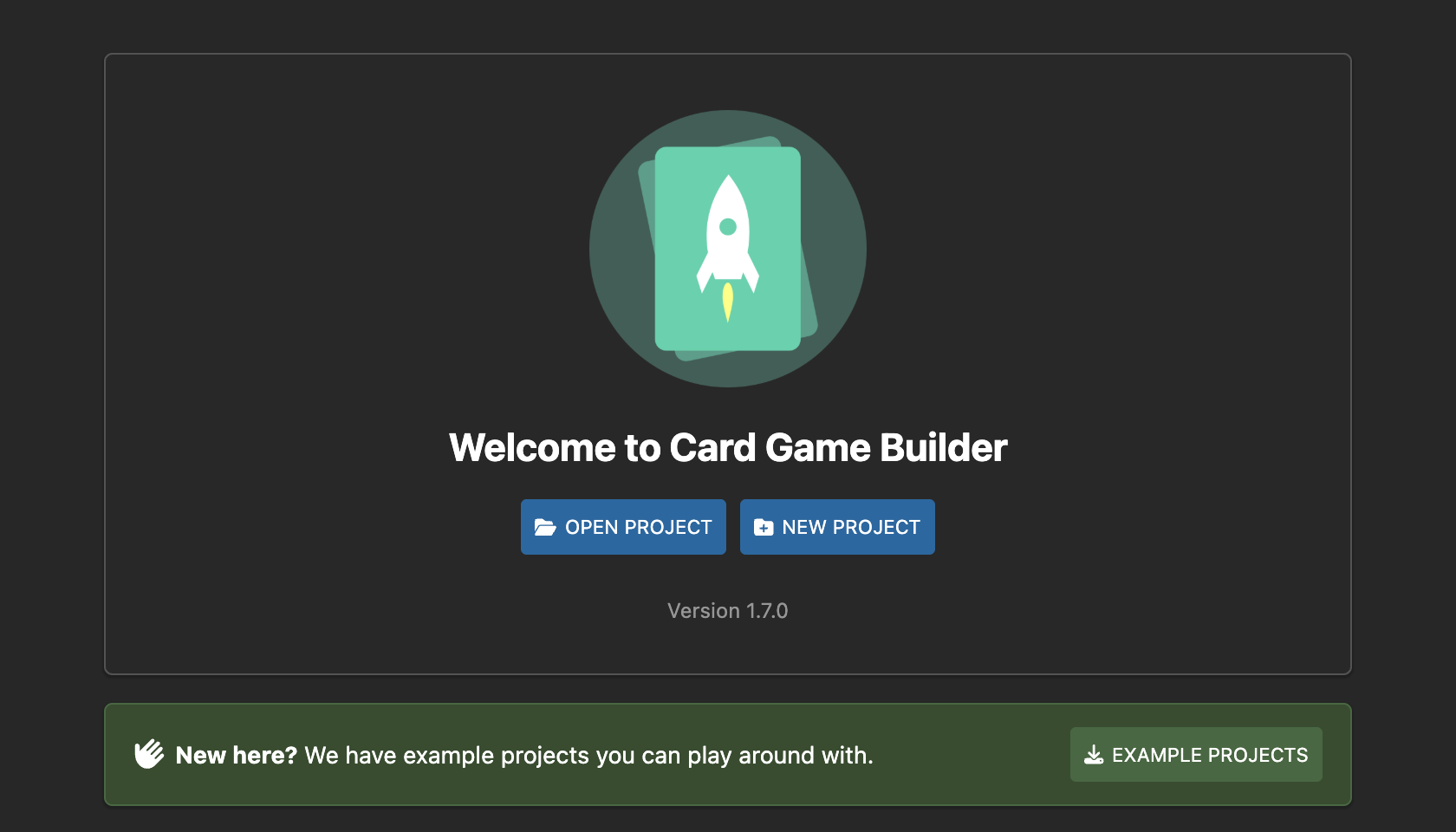
Choose New Project, then pick a name and a location. Card Game Builder (CGB) saves your project as a single file, with a .cgbz extension.
Sharing and backing up
Everything lives inside that one file, including any images you add to the project.
That makes a project easy to back up, or to share - email it, or put it in Google Drive or Dropbox, and whoever receives it can open it in CGB.
To open a project again, use Open Project on the welcome screen, or double click the .cgbz file.
Starting from an example
Not sure where to begin? The examples page has complete projects you can download and play around with.
Tabs
The app has several tabs along the top, representing the process to create a card game from start to finish.
Typically you will start at the left most tab, and move to the right:
- Create a template
- Create cards from the template
- Create a deck of cards
- Optionally add rules
- Output your deck ready for printing, or export it for playing online
The rest of the docs will go into detail on each of these tabs.